

Organization
Manage your organization's teams, members, and settings. Access from the sidebar by clicking Organization.
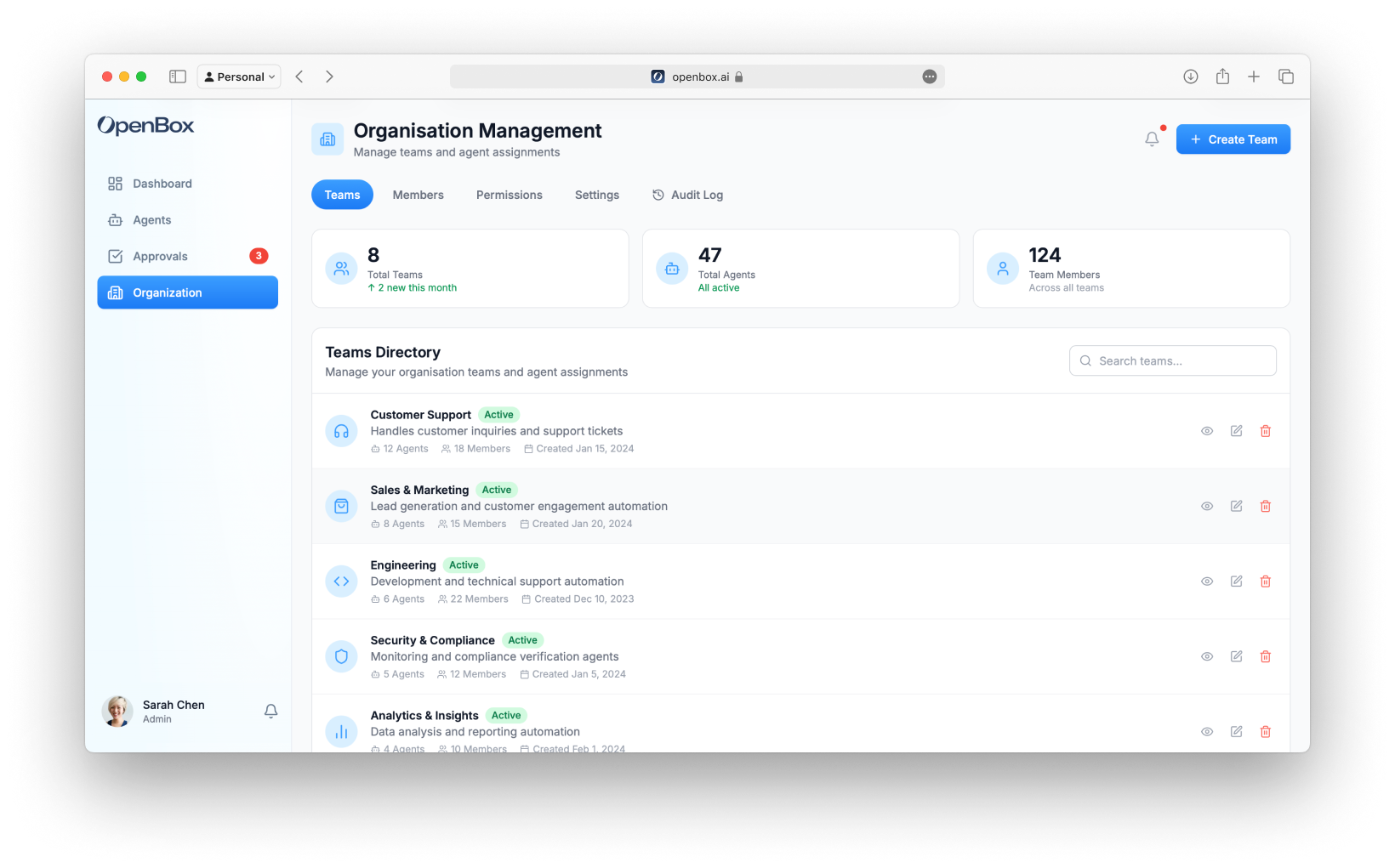
Teams
Organize agents and members into teams for access control.
Creating Teams
- Go to Organization → Teams
- Click Create Team
- Enter team name and description
Members
Adding Members
- Go to Organization → Members
- Click Create User
- Enter user details and select a role
- To assign a team, edit the user after creation and select a team
note
Team assignment is only available for non-administrator roles (e.g., Developer, Viewer). Organization-level admins have access across all teams.
Permissions
Configure what each role can access and modify within the organization. Go to Organization → Permissions.
| Role | Permissions |
|---|---|
| Admin | Can manage all teams, agents, policies, and organization settings |
| Developer | Can create and manage agents within assigned teams. Cannot modify organization settings |
| Viewer | Can view agents, logs, and reports. Cannot make any modifications |
Settings
General
- Organization name and logo
- Default timezone
- Notification preferences
Audit Log
View all organization activity:
| Event Type | Examples |
|---|---|
| Authentication | Login, logout, failed attempts |
| Members | Invites, role changes, removals |
| Agents | Created, updated, deleted |
| Policies | Created, updated, deleted |
| Approvals | Approved, rejected, expired |
| Settings | Configuration changes |
Filtering
Filter audit log by:
- Date range
- Event type
- User
- Agent
- Team
See Audit Log for details.
Next Steps
- View Audit Log - See detailed activity history and export for compliance
- Compliance - Use audit trails and attestation evidence for auditors