

Agents
Agents are the core entity in OpenBox. Each agent represents an AI system (workflow, assistant, or autonomous process) that OpenBox governs.
Access the agent list from the sidebar by clicking Agents.
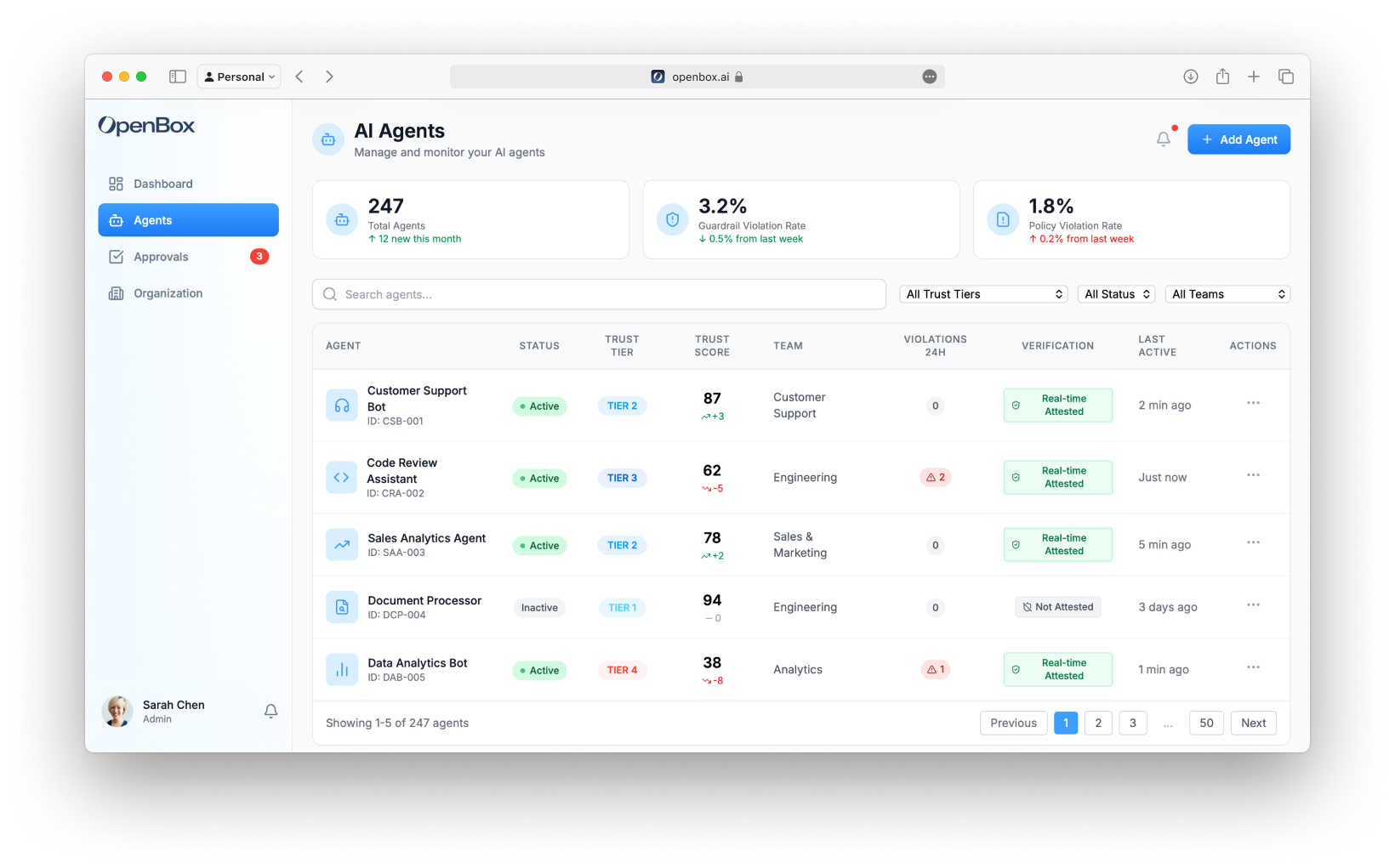
Stats Cards
The top of the page shows three key metrics:
| Metric | Description |
|---|---|
| Total Agents | Total registered agents with monthly change |
| Guardrail Violation Rate | Percentage of operations blocked by guardrails |
| Policy Violation Rate | Percentage of operations blocked by policies |
Search and Filters
Filter the agent list using:
- Search - Find agents by name or ID
- Trust Tier - Filter by Tier 1, 2, 3, or 4
- Status - Active, Inactive, or Revoked
- Team - Filter by owning team
Agent Table
The main table displays:
| Column | Description |
|---|---|
| Agent | Name, icon, and ID |
| Status | Active (green pulse), Inactive, or Revoked |
| Trust Tier | TIER 1, TIER 2, TIER 3, or TIER 4 badge |
| Trust Score | Current 0-100 score with trend indicator (↑/↓) |
| Team | Owning team |
| Violations 24h | Number of violations in the last 24 hours |
| Verification | Real-time attestation status |
| Last Active | Time since last activity |
| Actions | Menu for View Details, Settings |
Status Indicators
| Status | Indicator |
|---|---|
| Active | Green badge with pulsing dot |
| Inactive | Gray badge |
| Revoked | Red badge |
Trust Tier Badges
| Tier | Color | Description |
|---|---|---|
| TIER 1 | Green | Tier 1 (0% – 24%): Trusted — Minimal oversight, broad permissions |
| TIER 2 | Blue | Tier 2 (25% – 49%): Confident — Standard controls, approval for sensitive ops |
| TIER 3 | Orange | Tier 3 (50% – 74%): Monitor — Strict controls, monitoring required |
| TIER 4 | Red | Tier 4 (75% – 100%): Restrict — Minimal permissions, approval for most ops |
Agent Actions
Click the ⋮ menu on any row to:
- View Details - Navigate to agent detail page
- Settings - Go directly to agent settings
Or click anywhere on the row to view the agent detail.
Adding Agents
Click the Add Agent button (top right) to register a new agent. See Registering Agents for details.
Agent Detail Page
Click any agent to view its detail page with these tabs:
- Overview - Active sessions, completed, failed, and halted sessions
- Assess - Risk profile configuration
- Authorize - Guardrails, policies, and behavioral rules
- Monitor - Operational dashboard and telemetry
- Verify - Goal alignment and drift detection
- Adapt - Trust evolution and policy suggestions
- Settings - Agent configuration, risk profile, API keys, and lifecycle management
Next Steps
- Register a New Agent - Add a new agent to OpenBox
- Trust Overview - View trust scores and trends across all agents